--> Delphi Tips Trick | Deskripsi Singkat Blog di Sini

For Newbie

Saturday, 10 September 2011

Blinking Text In Borland Delphi

Blinking Text In Borland Delphi

Blinking Text In Borland Delphi

Blinking is a simple example for animation in Borland Delphi 7 to create simple application with interesting visualization, the following is the visualization.
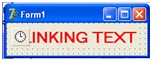


Basically, the blinking text is label component which is visualized then hidden continuously, to do that automatically, using Timer component in Borland Delphi 7, that component is on Component Pallete System.

 the soruce code on timer1 event : OnTimer is:

If Label1.Visible then
begin
Label1.Visible:=False;
end
Else
Label1.Visible:=True;


this is the visualization:
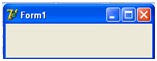


 I hope this article can give benefit to the visitors, readers, developer and me. Thanks for visiting and availability for sharing this article by pressing 
Share this on Facebook
or just press like button under this posting
Easiest way step by step Text Conversion In To Format PDU (Protocol Data Unit) And Conversion Format PDU (Protocol Data Unit) Into Text In Borland Delphi Using SMSCODEC

Easiest way step by step Text Conversion In To Format PDU (Protocol Data Unit) And Conversion Format PDU (Protocol Data Unit) Into Text In Borland Delphi Using SMSCODEC

To make Easiest way step by step Text Conversion In To Format PDU (Protocol Data Unit) And Conversion Format PDU (Protocol Data Unit) Into Text In Borland Delphi Using SMSCODEC application, please enter the following component into Form1 in Borland Delphi 7 work area:


No
Component Name Properties Value
1 Label1 Caption http://www.averagecoder.com
2 Label12 Caption http://www.ItsToShare.com
3 GroupBox1 Caption ASCII to PDU
4 Button1 Caption ASCII TO PDU
5 Edit1 Text http://www.ItsToShare.com
6 Edit2 Text -
7 Label3 Caption Enter the ASCII string to convert:
8 Label4 Caption PDU result:


GroupBox2 Caption PDU to ASCII

Button2 Caption PDU TO ASCII

Label5 Caption Enter the PDU string to convert

Label6 Caption ASCII result:

Edit3 Text -

Edit6 Text -


GroupBox3 Caption DECODE SMS

Button3 Caption DECODE SMS

Label2 Caption Enter the PDU of Received SMS to Decode:

Label7 Caption Sender number

Edit4 Text 059126181642040C9126184623477
20000609090710123822354747A0E
4ACF416137A88C0FB7E1EC32E86
D06C9CBE372DA5E2683E6EDB90B

Edit5 Text -

Memo1 Lines -


GroupBox4 Caption ENCODE SMS

Button4 Caption Encode SMS

Label8 Caption Sender number

Label9 Caption The Message

Label10 Caption PDU Result (ready to be sent):

Label11 Caption Int.Format. Ex: 638164227427

Edit7 Text -

Edit8 Text -

Memo2 Lines -


SMSCODEC1 - -
  
Then arrange the components become like the following visualization below:


Then type Source Code as follows in each component, don’t forget to make it appropriate with the events:
No Component Event Source Code

Button1 OnClick Edit2.Text := SMSCODEC1.ASCII2PDU7BIT(Edit1.Text);
Edit6.Text := Edit2.Text;

Button2 OnClick Edit3.Text:= SMSCODEC1.PDU7BIT2ASCII(Edit6.Text,0,Length(Edit2.Text));

Button3 OnClick var ResultList: TStringList;
begin
ResultList := SMSCODEC1.DecodeSMS(Edit4.Text);
Edit5.Text := ResultList.Strings[0]; // sender number
Memo1.Text := ResultList.Strings[1]; // The message

Button4 OnClick    Edit8.Text := SMSCODEC1.EncodeSMS(Edit7.Text,Memo2.Text)
This is the screen shoot of Application to Text Conversion In To Format PDU (Protocol Data Unit) And Conversion Format PDU (Protocol Data Unit) Into Text In Borland Delphi Using SMSCODEC


 I hope this article can give benefit to the visitors, readers, developer and me. Thanks for visiting and availability for sharing this article by pressing 
Share this on Facebook
or just press like button under this posting
no image

PDU (Protocol Data Unit) Converter Delphi : Text Conversion In To Format PDU (Protocol Data Unit) And Conversion Format PDU (Protocol Data Unit) Into Text In Borland Delphi Using SMSCODEC (BASIC Concept)


As Comport Component, SMSCODEC Component is not innate Borland Delphi 7 component. That component has to be installed first. The how to install SMSCODEC component will be discussed in another writing. (Check in the note under this article)
Basically, process to converse Text into Format Protocol Data Unit (PDU) and Format Protocol Data Unit (PDU) conversion into Text in Delphi can be done by many ways, such as by Coding directly (for beginner, it is difficult to do this because it needs a lot of understanding and knowledge and coding is quite long). The second way is easier, even for beginner, the conversion process will be conducted using SMSCODEC component, so that the Text Conversion process into Format Protocol Data Unit (PDU) and Format Protocol Data Unit (PDU) conversion into text in Delphi become easy and just writing couple codes line, easy and not troublesome!

Step By Step making application : Text Conversion In To Format PDU (Protocol Data Unit) And Conversion Format PDU (Protocol Data Unit) Into Text In Borland Delphi Using SMSCODEC CLIK HERE


 I hope this article can give benefit to the visitors, readers, developer and me. Thanks for visiting and availability for sharing this article by pressing 
Share this on Facebook
or just press like button under this posting

Friday, 9 September 2011

Running Text In Borland Delphi 7 (From Under the Form To The Upper)

Running Text In Borland Delphi 7 (From Under the Form To The Upper)

Basically, animation in software application that is made by someone will be able to add trust value by the user. In this writing will discuss about making animation in the form of running text in Delphi Form. Text that will become animation is text in “label” component. Basically, text is not moving but the label component is. So that will get an effect which give impression that the label component is moving in row with the movement of the component. This Application will create a label move Upper The Form design from from under page of the form design
Insert the following Component to the Borland Delphi 7 Form Design


No
Component Name Properties Value
Label1 Caption www.ItsToShare.Com
Timer1 - -
This is the design form of the Running Text In Borland Delphi 7 (To The Upper) Application


Picture 1. Running text visualization design in Delphi.
Insert the following Source  Code to the Borland Delphi 7 Form Design

No Component Name Event Source Code
Timer1 OnTimer Label1.top:=Label1.TOP-10;
if (Label1.TOP+Label1.Height) <= 0 then
Label1.TOP:=Form1.Height-(label1.Height+50);

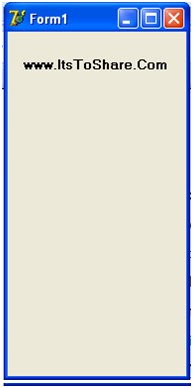
The following is the screenshot picture.


 I hope this article can give benefit to the visitors, readers, developer and me. Thanks for visiting and availability for sharing this article by pressing 
Share this on Facebook
or just press like button under this posting

Wednesday, 7 September 2011

Running Text in Borland Delphi 7 (Go Along To The Left)

Running Text in Borland Delphi 7 (Go Along To The Left)

Basically, animation in software application that is made by someone will be able to add trust value by the user. In this writing will discuss about making animation in the form of running text in Delphi Form. Text that will become animation is text in “label” component. Basically, text is not moving but the label component is. So that will get an effect which give impression that the label component is moving in row with the movement of the component. This Application will create a label Go Along To The Left from the right Form design

Insert the following Component to the Borland Delphi 7 Form Design

No Component Name Properties Value
1 Label1 Caption www.ItsToShare.Com
2 Timer1 - -

This is the design form of the Running Text In Borland Delphi 7 (Go Along To The Left) Application

Picture 1. Running text visualization design in Delphi.

Insert the following Source  to Code the Borland Delphi 7 Form Design


No Component Name Event Source Code
Timer1 OnTimer Label1.Left:=Label1.left-10;
if (Label1.left+Label1.width) <= 0 then
Label1.left:=Form1.Width-(label1.Width+10);

The following is the screenshot picture.


 I hope this article can give benefit to the visitors, readers, developer and me. Thanks for visiting and availability for sharing this article by pressing 
Share this on Facebook
or just press like button under this posting

Friday, 2 September 2011

HOW TO (Step by Step) INSTALL COMPORT for serial communication ON BORLAND DELPHI 7

HOW TO (Step by Step) INSTALL COMPORT for serial communication ON BORLAND DELPHI 7


  HOW TO (Step by Step) INSTALL COMPORT ON BORLAND DELPHI 7
1.    Download Comport by Click Here, then Extract the file, rename the folder to COMPORT
 2.    Copy COMPORT folder to C:\Program Files\Borland\Delphi7\Lib
 3.    Open Borland Delphi 7, then open Page Tab Tool Environment Option

4.    Then will apear as follows    Click on Library tab
 6.    Will appear dialog box for directories decision as follows

7.    Will appear dialog box of folder decision that will be used, directed to C:\Program Files\Borland\Delphi7\Lib\COMPORT then press OK button
9.    Next is open page tab file-open

10.              Directed to  C:\Program Files\Borland\Delphi7\Lib\COMPORT then open CPortLib7.dpk file

11.              Conduct compile then install, if appear information dialog box click OK, move to the next step

12.              Open page tab File-open. Directed to C:\Program Files\Borland\Delphi7\Lib\COMPORT then open DsgnCport7.dpk file

13.              Do the same thing like step 10, so that will appear as follows

14.              Check on component pallete Cport Lib. You will find component like the following picture that has been installed:

 I hope this article can give benefit to the visitors, readers, developer and me. Thanks for visiting and availability for sharing this article by pressing 
Share this on Facebook
or just press like button under this posting

Opening Secret Partition, Appearing Picture With Jpeg Format In To Image 1 Component In Borlan Delphi 7

Opening Secret Partition, Appearing Picture With Jpeg Format In To Image 1 Component In Borlan Delphi 7

Opening Secret Partition, Appearing Picture With Jpeg Format In To Image 1 Component In Borlan Delphi 7
When trying to load picture from the folder through open dialog component to be visualized in component image, it is easy to those who knew the secret, but it was difficult for the writer at that time. Whereas the secret is just in the form of 4 letters (characters) and a reading tag.
This is the explanation of the essay theories: Picture standard format that is able to be visualized in component image Delphi (there is in Pallete component: additional) is Picture with bitmap format while the picture that will be visualized is in Jpeg format. However, it is weird when we load the picture directly through that component (image 1) before execution (through object inspector> Picture then trace the picture from computer), then the picture can appear directly. It is different when we load picture with Jpeg From folder with open dialog component.
With source code:
procedure TForm1.ButtonCariGambarClick(Sender: TObject);
begin
if opendialog1.Execute then
image1.Picture.LoadFromFile(opendialog1.FileName);
end;
Note: picture that is chosen by Jpeg Format
Then will appear error message which means the picture Format is not supported.
To solve the problem in ‘uses’ line (in source code writing unit) add Jpeg, so that become picture as follows below:

figure. Add Jpeg to uses
Next, please execute the program and load the picture from the folder through open dialog component.
the Picture Will loaded successfully

 I hope this article can give benefit to the visitors, readers, developer and me. Thanks for visiting and availability for sharing this article by pressing 
Share this on Facebook
or just press like button under this posting