To make the application, enter the components as follows in to Form 1
Arrange the component like the picture below:

Then type the source code below. Each source code is accidentally written very simple to make it easier for the beginners in understanding the program that is written.
This is the application preview


or just press like button under this posting
| No | Component | Properties | Value |
| 1 | Form1 | Caption | Laptop Death Pixel Checker |
| 2 | GroupBox1 | Caption | Choose Color |
| 3 | Shape1 | Brush-Color | ClWhite |
| 4 | Shape2 | Brush-Color | ClBlack |
| 5 | Shape3 | Brush-Color | ClRed |
| 6 | Shape4 | Brush-Color | ClLime |
| 7 | Shape5 | Brush-Color | ClBlue |
| 8 | Shape6 | Brush-Color | ClYellow |
| 9 | Shape7 | Brush-Color | ClWhite |
| 10 | Label1 | Caption | White |
| 11 | Label2 | Caption | Black |
| 12 | Label3 | Caption | Red |
| 13 | Label4 | Caption | Green |
| 14 | Label5 | Caption | Blue |
| 15 | Label6 | Caption | Choose Color |
| 16 | Label7 | Caption | Auto Change |
| 17 | Button1 | Caption | ... |
| 18 | Timer1 | Enabled | False |
| 19 | ColorDialog1 | - | - |

Before type the source code , please declare a global variable call i which its an Integer.
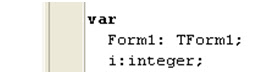
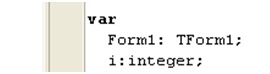
Then type the source code below. Each source code is accidentally written very simple to make it easier for the beginners in understanding the program that is written.
| Component Name | Event | SOURCE CODE |
| Form1 | FormCreate | form1.Height:= 400; form1.Width:= 275; form1.Position := poDesktopCenter; |
| Form1 | OnMouseDown | form1.Height:= 400; form1.Width:= 275; form1.Position := poDesktopCenter; form1.Color:=clBtnFace; form1.BorderStyle:= bsSizeable; groupbox1.Show; timer1.Enabled:=false; i:=0; |
| Shape1 | OnMouseDown | form1.Height:=monitor.Height; form1.Width:=monitor.Width; form1.Position := poDesktopCenter; form1.BorderStyle:=bsNone; groupbox1.Hide; form1.Color:=ClWhite; |
| Shape2 | Shape1MouseDown | form1.Height:=monitor.Height; form1.Width:=monitor.Width; form1.Position := poDesktopCenter; form1.BorderStyle:=bsNone; groupbox1.Hide; form1.Color:=ClBlack; |
| Shape3 | Shape1MouseDown | form1.Height:=monitor.Height; form1.Width:=monitor.Width; form1.Position := poDesktopCenter; form1.BorderStyle:=bsNone; groupbox1.Hide; form1.Color:=ClRed; |
| Shape4 | Shape1MouseDown | form1.Height:=monitor.Height; form1.Width:=monitor.Width; form1.Position := poDesktopCenter; form1.BorderStyle:=bsNone; groupbox1.Hide; form1.Color:=ClLime; |
| Shape5 | Shape1MouseDown | form1.Height:=monitor.Height; form1.Width:=monitor.Width; form1.Position := poDesktopCenter; form1.BorderStyle:=bsNone; groupbox1.Hide; form1.Color:=ClBlue; |
| Shape6 | Shape1MouseDown | form1.Height:=monitor.Height; form1.Width:=monitor.Width; form1.Position := poDesktopCenter; form1.BorderStyle:=bsNone; groupbox1.Hide; form1.Color:=shape6.Brush.Color; |
| Shape7 | Shape1MouseDown | i:=0; form1.Height:=monitor.Height; form1.Width:=monitor.Width; form1.Position := poDesktopCenter; form1.BorderStyle:=bsNone; groupbox1.Hide; timer1.Enabled:=true; |
| Timer1 | OnTimer | var secon:integer; begin secon:=strtoint(edit1.Text); timer1.Interval:= secon*1000; i:=i+1; if i=1 then form1.Color:=ClWhite; if i=2 then form1.Color:=ClBlack; if i=3 then form1.Color:=ClRed; if i=4 then form1.Color:=ClLime; if i=5 then form1.Color:=ClBlue; end; |
| Button1 | OnClick | if ColorDialog1.Execute then begin Shape6.Brush.Color:=ColorDialog1.Color; end; end; procedure TForm1.Shape3MouseDown(Sender: TObject; Button: TMouseButton; Shift: TShiftState; X, Y: Integer); begin form1.Height:=monitor.Height; form1.Width:=monitor.Width; form1.Position := poDesktopCenter; form1.BorderStyle:=bsNone; groupbox1.Hide; form1.Color:=ClRed; |
This is the application preview

 |
| Add caption |
I hope this article can give benefit to the visitors, readers, developer and me. Thanks for visiting and availability for sharing this article by pressing
 | Share this on Facebook |